Current version v2.2.92 · Mac, Windows, Android, and Linux versions are free
Download source
iPhone / iPad: App Store Other platforms: installers from this site
Current version
v2.2.92
2 ways to get it
iPhone / iPad: $2.99 once Mac, Windows, Android, and Linux: free
Developer
Shadow Launch Technology Limited
App ID
932747118
Choose a device and installer format
Device detection only changes the order of download options. Check your device's chip, architecture, and distribution before downloading.
iPhone / iPad
$2.99 one-time purchase. Get Shadowrocket for iPhone and iPad from the App Store; one purchase can be shared with the same Apple ID. Mac, Windows, Android, and Linux versions are free. Before purchasing, check the app name, developer, and App ID on the store page.
System requirements: iOS / iPadOS 13.0 or later; check the App Store page for the listed requirements. Installation availability depends on the compatibility information shown in the current store.
Free. This site provides dmg installers for Apple Silicon and Intel Macs. The iPhone / iPad version is a one-time $2.99 App Store purchase; Windows, Android, and Linux versions are also free. Open the dmg, drag the app to Applications, then launch it from that folder.
System requirements: macOS 12 or later. Choose the download according to your chip type; do not use the two installers interchangeably.
Not sure which to choose? Open About This Mac and check Chip / Processor. If you see a developer verification warning on first launch, follow the installation prompt guide below.
Windows
Free. Download the 64-bit exe installer from this site. When the download finishes, open the file and follow the setup wizard. The iPhone / iPad version is a one-time $2.99 App Store purchase; Mac, Android, and Linux versions are also free.
Architecture: 64-bit. Check System type under System → About in Settings. If SmartScreen appears, first confirm that the file came from this page, then follow the steps to proceed.
Free. Use the arm64 apk installer from this site. It works with most Android phones and tablets released in recent years. The iPhone / iPad version is a one-time $2.99 App Store purchase; Mac, Windows, and Linux versions are also free.
Architecture: arm64. After downloading, open the file from your browser's download history or a file manager. If Android asks you to grant installation permission, allow it only for the app opening this file. You can revoke the permission after installation.
If the browser inside a messaging app cannot download the file, open this page in your device's browser and tap the installer button.
Linux
Free. Available in three x86_64 formats: deb, rpm, and AppImage. The iPhone / iPad version is a one-time $2.99 App Store purchase; Mac, Windows, and Android versions are also free. Choose the format for your distribution; you do not need to install all three.
Architecture and format: Choose .deb for Debian / Ubuntu, .rpm for Fedora / openSUSE, or AppImage for other distributions. AppImage needs execute permission before launch; system dependencies still depend on your distribution.
amd64 and x86_64 both refer to 64-bit x86 architecture here; neither indicates that the app runs directly on ARM devices.
First installation and system prompts
Desktop and Android installers are not code-signed, so the system may block them on first launch. Confirm the source first, then follow the instructions for the prompt you see.
These steps address operating-system restrictions on newly downloaded apps; they do not resolve connection failures. Before starting, confirm that you downloaded the file using a button on this page and that its URL is under this site's /dl/shadowrocket/ path. If the file came from a forwarded message or another download page, return here and download it again. Proceed only for the file whose source you have confirmed; there is no need to disable system-wide protection.
System or format
What you see
Steps
Windows
SmartScreen says “Windows protected your PC.”
Select “More info,” confirm that this is the file you downloaded, then select “Run anyway.” Follow the setup wizard to finish installation. If your organization's device policy does not provide an option to proceed, contact the device administrator.
macOS
A message says the developer cannot be verified.
First drag the app to Applications. After trying to open it, go to System Settings → Privacy & Security, select “Open Anyway” beside the relevant blocked-app entry, and confirm as prompted.
macOS
After you confirm the source, the app is still reported as “damaged.”
Confirm that the app is at the path shown below, then run this command in Terminal: xattr -cr /Applications/Shadowrocket.appThis command removes extended attributes from that app. Use it only after confirming the download source and path, then open the app again.
Android
The system asks you to allow installation of unknown apps.
Follow the prompt to open settings for the current browser or file manager and allow apps from this source. Return to the downloaded file and continue installation. The setting name varies by system; you can turn off this permission after installation.
Linux / AppImage
The file has downloaded but does not have execute permission.
In a directory used only for this download, run: chmod +x Shadowrocket-*-linux-x86_64.AppImageThen run: ./Shadowrocket-*-linux-x86_64.AppImageThe wildcard should match only the single file downloaded for this installation.
Linux / deb
Debian / Ubuntu needs to install a local package and its dependencies.
Open a terminal in the download directory. Confirm that it contains only the package you downloaded for this installation, then run: sudo apt install ./Shadowrocket-*-linux-amd64.debKeep the relative path prefix before the filename so apt treats it as a local file.
Linux / rpm
Fedora / openSUSE uses an rpm package.
On Fedora, run this in the download directory: sudo dnf install ./Shadowrocket-*-linux-x86_64.rpmOn openSUSE, open the rpm with the system software installer or use the distribution's package manager to handle dependencies.
The asterisk in these commands matches the downloaded filename; it does not automatically select the newest file. If the download directory contains older packages, move the file for this installation into a separate directory before running the command. If you encounter an architecture mismatch, missing dependencies, or an administrator restriction, address that cause first rather than repeatedly running commands to bypass prompts.
Store and account region
This section applies to iPhone / iPad only. The app is not available in the mainland China store. The country or region associated with your Apple ID determines which App Store you see, not your device's current language, displayed region, or Wi-Fi connection. If the product page says it is unavailable after you tap the link on this page, first check the account used for Media & Purchases. Do not rely only on the account name shown at the top of your device.
Check the current store
Go to Settings → Apple ID → Media & Purchases → View Account → Country/Region. The system may ask you to verify your identity; once complete, check the account's current region. You can also check the account used for purchases on the App Store account page. It may differ from the account used for other device services. The purchase belongs to the Apple ID that completed the transaction.
If you need to change regions
Open the change option on the Country/Region page above and follow Apple's requirements for account balance, active subscriptions, Family Sharing, and payment information. Whether and when a change is possible depends on your account status and the instructions shown by Apple; it may not be available immediately for every account. Changing the system's Language & Region settings does not change the App Store region.
The App Store button on this page links to the Shadowrocket product page. Use the local currency and purchase details shown by the store: the US App Store price for iPhone / iPad is a one-time $2.99 purchase; Mac, Windows, Android, and Linux versions are free. Computer and Android users can download installers from this site above; they do not need to change their App Store region to get these versions.
Verify the app and identify its interface
Check the store listing and download source first, then use official screenshots to identify interface locations. A screenshot alone does not verify the app.
Check three details in the App Store
Developer: Check the provider information on the product page. The name should be Shadow Launch Technology Limited. Do not rely only on a short search-result title or a similar name.
Official icon: Check for the rocket icon with a white background and blue-purple outline. Use the icon only as a supporting clue; also confirm the developer and App ID.
App ID: The product link on this page ends with id932747118, and the App ID is 932747118. Before and after opening the store, confirm that it is the same product.
Shadowrocket for iPhone / iPad is a one-time $2.99 App Store purchase; Mac, Windows, Android, and Linux versions are free. A free price shown for a same-name item in App Store search results indicates an imitation; do not verify an app by name alone. The genuine product you previously purchased may show a redownload icon, which is different from a free price on an unfamiliar same-name listing.
Check the source on other platforms
Official Mac, Windows, Android, and Linux installers are provided by the buttons on this page, with download paths under this site's /dl/shadowrocket/ directory. Check the browser address bar and download source; do not use repackaged files or files from unknown sources. If the system blocks the app, follow each step in the installation prompt guide. The presence or absence of a warning alone does not verify an app's identity.
Use screenshots to locate controls
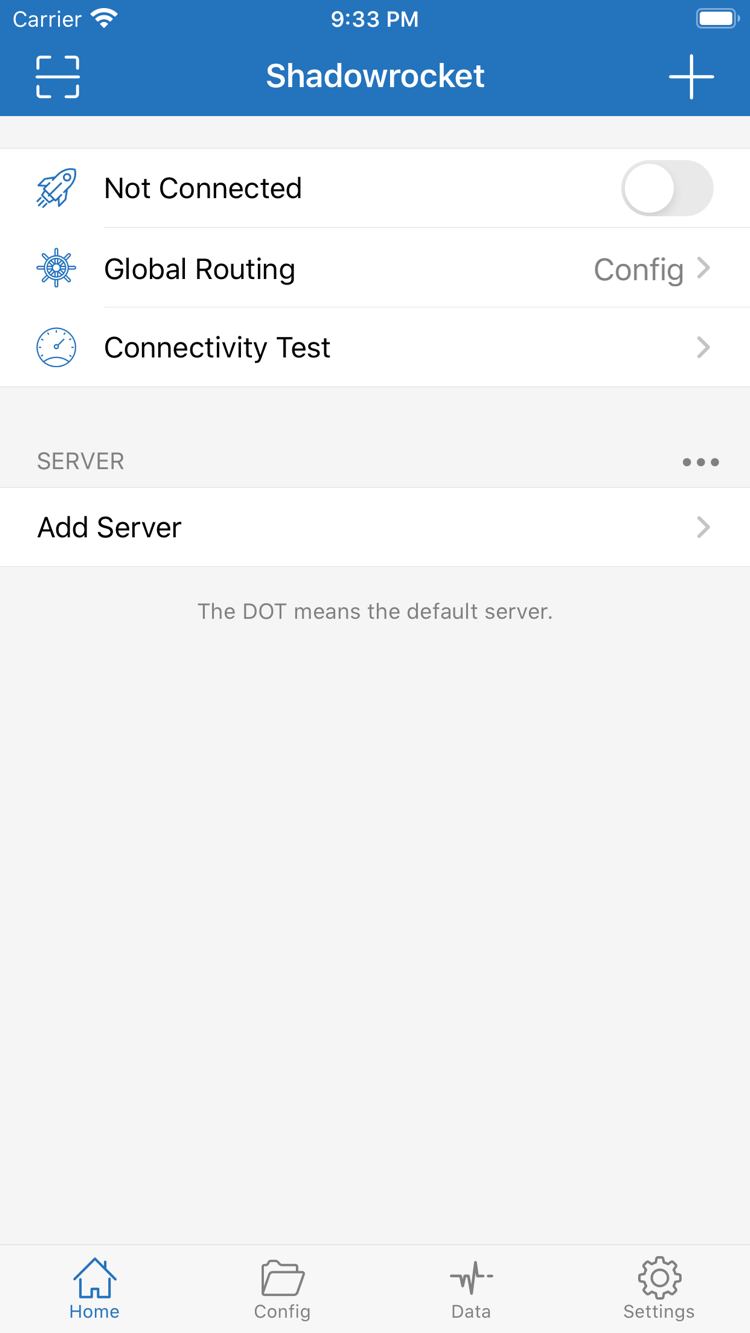
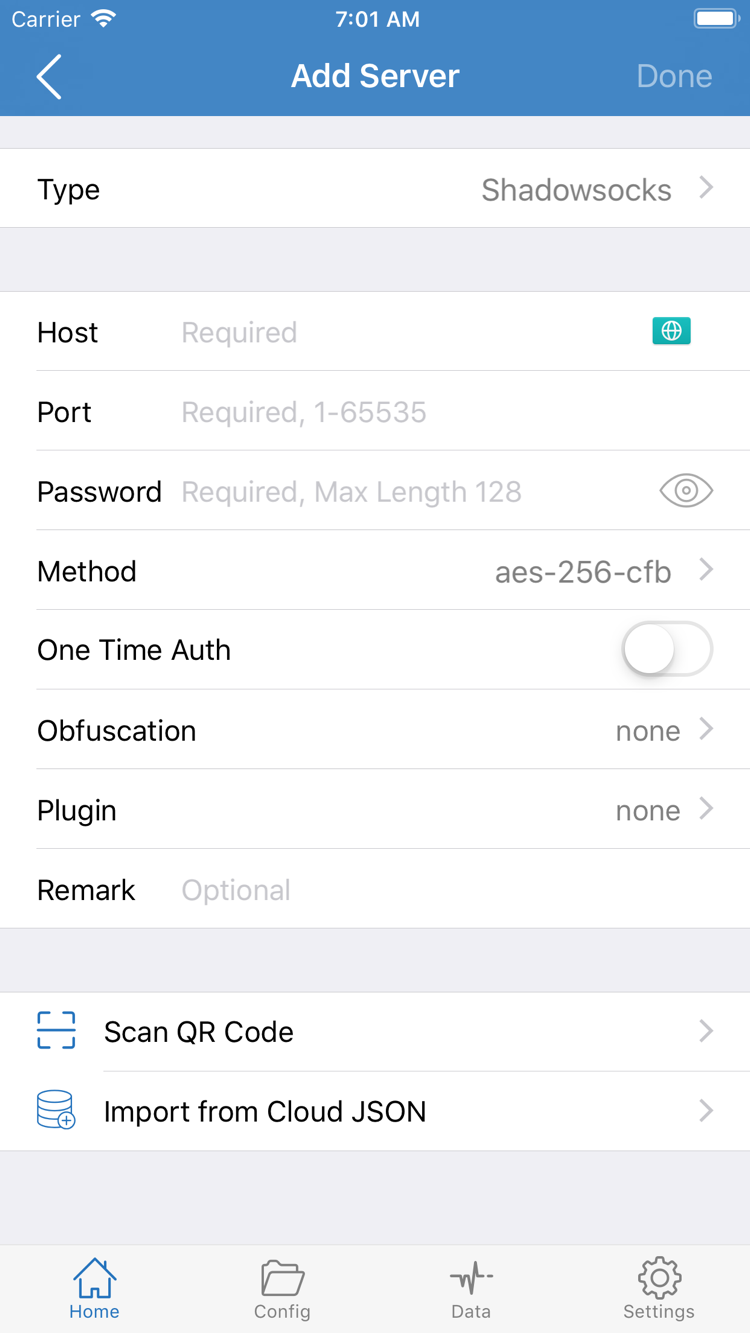
The two screenshots on the right show the official App Store interface in English. Home shows the connection switch, Global Routing, Connectivity Test, and SERVER group. Add Server shows the fields for manual setup. Interfaces may vary by platform, language, or later updates. Screenshots cannot identify the version of your installed app or confirm that the server settings shown are usable.
Not Connected on Home means the client has not established a connection; it does not mean installation failed. On Add Server, enter your own server details in Type, Host, Port, Password, and Method. Do not treat screenshot contents as a usable service. If you have a subscription, follow the user guide to import it.
Home: Check connection status and Global Routing, then open Add Server from the SERVER group.Add Server: Enter your existing server details or use Scan QR Code or Import from Cloud JSON.
Restore after changing devices or reinstalling
Handle app purchase records and connection configuration separately. Redownloading the app restores only the client; it does not restore servers, subscriptions, Config files, or personal settings. Before changing devices, make sure you can retrieve your existing subscription URL or server details again, and keep any configuration you still need in a safe place.
Redownload on iPhone / iPad
Sign in to the App Store with the Apple ID used for the original purchase. Go to App Store → Account → Purchased, find Shadowrocket, and download it again. On some system versions, this may be under App → My Apps; use the labels shown on your account page. iPhone and iPad share one purchase under the same Apple ID. The iPhone / iPad version is a one-time $2.99 purchase; Mac, Windows, Android, and Linux versions are free.
If you cannot find the app in your purchase list, first confirm that you are signed in with the account that made the purchase. Then check whether the purchase is hidden and whether the current store region affects redownloading. Do not confirm another purchase before checking the account. Switching to another Apple ID does not transfer purchase records from the original account.
Reinstall on a computer or Android device
After changing devices, return to this page and download the installer for the new device's system and architecture. An older Intel Mac does not mean that a new Mac should use the Intel package. If you change Linux distributions, check again whether you need deb, rpm, or AppImage. After installation, follow the system prompt steps on this page for the first launch, then import your configuration.
Keep recovery information before updating
App Store manages updates for iPhone / iPad. For Mac, Windows, Android, and Linux, return to this page to get a new installer. Save important configuration before updating; do not delete the only copy of a subscription or server record just to update. After reinstalling, check the selected server, Global Routing, and Config before testing the connection. A subscription URL may contain access credentials; do not include it in public screenshots or share it with unrelated people.
Pricing and service scope
iPhone / iPad: A one-time $2.99 App Store purchase; both device types can share one purchase under the same Apple ID. There is no monthly client fee. Other storefronts show local currency; the purchase confirmation page shows the actual amount. Mac, Windows, Android, and Linux: The client is free; download the appropriate installer from this site.
App purchase ≠ service plan
The client reads existing server details, establishes a connection, and processes traffic according to rules. Buying or installing Shadowrocket does not provide a connection service or turn an empty configuration into a working one. This site does not provide, sell, or recommend nodes or subscriptions; using any platform requires your own subscription or server details.
After installation, get your existing subscription URL from your service provider, or prepare your own server address, port, protocol, and authentication details. Import them and check the update result, then select an available server. For Global Routing, Config applies rules from the current configuration file, Proxy uses the proxy mode, and Direct uses the direct-connection mode. Choose settings according to your needs; an enabled switch does not mean all traffic follows the same route.
Client costs and the validity period of an existing service are managed separately. If a subscription expires, a server stops responding, or configuration fields become invalid, redownloading the client will not restore the service. First check whether the subscription can be updated and whether the server details are valid, then troubleshoot the connection and rules. See the user guide for the full setup process and the configuration manual for settings and routine maintenance.
Download and installation FAQ
Find answers based on your device, purchase record, or system prompt.
Can I use Shadowrocket on a computer or Android phone?
Yes. Mac, Windows, Android, and Linux versions are free; download the appropriate installer from this site. The iPhone / iPad version is a one-time $2.99 App Store purchase. Import your own subscription or server details before using any platform.
Which Mac version should I choose: Apple Silicon or Intel?
Open About This Mac from the Apple menu. Choose the Apple Silicon version if the Chip field shows Apple; choose the Intel version if the Processor field shows Intel. Do not decide based only on the computer's appearance or purchase year.
What should I do if Windows warns me or blocks the app?
First confirm that you downloaded the installer from this site. If SmartScreen says “Windows protected your PC,” select “More info,” then “Run anyway.” If the device is managed by an organization and there is no option to proceed, contact the administrator. Do not disable system-wide protection.
Why can't I find Shadowrocket in the App Store?
The app is not available in the mainland China store. The country or region associated with your Apple ID determines which store you see. Check the account region under Settings → Apple ID → Media & Purchases → View Account → Country/Region. Whether you can change it depends on Apple's account requirements.
Do I need to pay again after changing devices or reinstalling?
The iPhone / iPad version is a one-time $2.99 App Store purchase and can be redownloaded from Purchases with the same Apple ID. Mac, Windows, Android, and Linux versions are free; download the installer again on the new device. Restore or reimport subscriptions and server details separately.
Can I install Shadowrocket on iPad and share the purchase with iPhone?
Yes. iPhone and iPad can share one $2.99 App Store purchase under the same Apple ID. Check the App Store page for system requirements. Mac, Windows, Android, and Linux versions are free. A purchase record does not transfer subscriptions or server configuration.